Showing posts with label Google. Show all posts

How to enable YouTube Dark Mode on Android right now (Root)

How to enable YouTube Dark Mode on Android right now (Root)


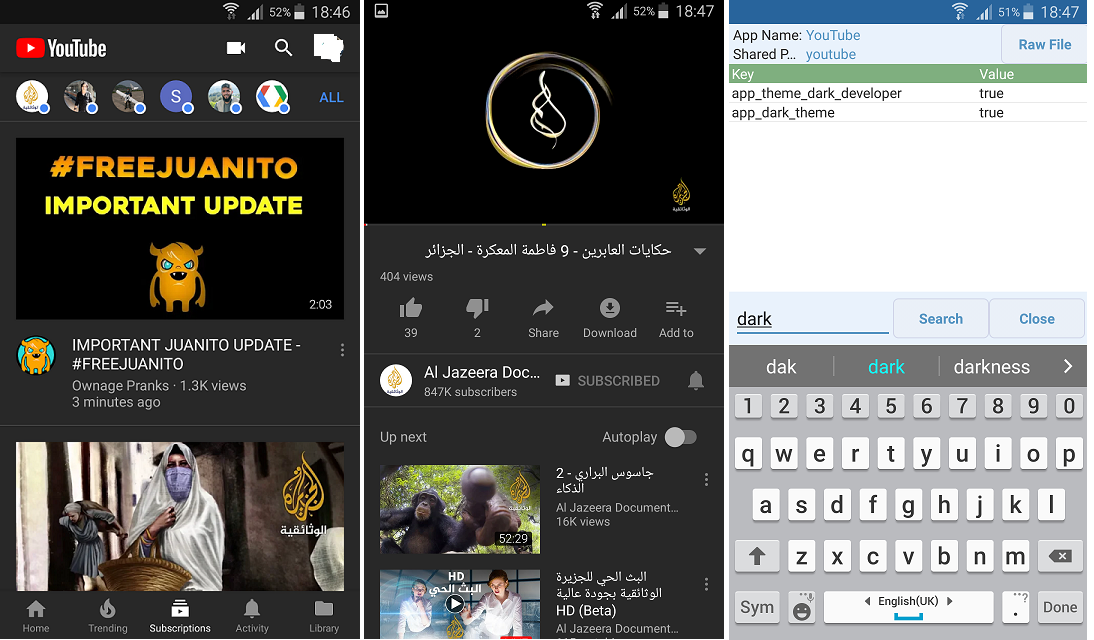
oogle recently added a Dark Mode to the YouTube mobile app (following Dark Mode for the desktop website), but there’s just one problem: iOS users get it first. Dark Mode is still “coming soon” to Android and we’re not exactly sure how long it will take. The good news is the Android developer community has once again come through for us. If you have root access on your Android device, you can get Dark Mode in the app right now.
This method requires modifying the a value in the shared-prefs in /data. That’s why root access is necessary. If your device is not already rooted, check the device forums for instructions. Once you have root access, you will need the Preferences Manager app and, of course, YouTube. Here’s how to do it:
  1. Download and install Preferences Manager
  2. Find YouTube in the list
  3. Open youtube.xml
  4. Search for dark
  5. Change both values from false to true
    1. If you don’t have the values, add them (theme_dark_app and theme_dark_watch_panel) and change them to true
  6. Save and then force close YouTube
When you open up the app again it should be in Dark Mode. The app will have a nice dark gray background and white-on-black icons. You can scroll through videos without the blinding white interface. Thanks to XDA member AL_IRAQI for sending in this method and providing screenshots.

Latest update ( version 13.19.58 ) 
<boolean name="app_theme_dark_developer" value="true"/>
<boolean name="app_dark_theme" value="true"/>


Thumbnail


OR USE ES FILE EXPLORER
GOTO ROOT folder.

/data/data/com.google.android.youtube/shared_pref/
There is Youtube.xml file.
Just Add
<boolean name="app_theme_dark_developer" value="true"/>
<boolean name="app_dark_theme" value="true"/>

and save.
Khalaas.

Xiaomi will launch MiLens, a Google Lens competitor for China, with the Mi Mix 2S

Xiaomi will launch MiLens, a Google Lens competitor for China, with the Mi Mix 2S


We’re a few hours away from the launch of the Xiaomi Mi Mix 2S and the Huawei P20, but while the latter device has had nearly every aspect leaked already, there’s still a few things that aren’t that clear about the Mi Mix 2S. We know that it’ll launch with Android Oreo, wireless charging, a design that’s similar to the Mi Mix 2 (and not the corner notch as earlier rumors suggested), and some camera enhancements, but we haven’t heard much about its software. With the imminent release of the device, we have obtained access to the MIUI 9 China stable ROM—the software release that will be present at launch time. Within the firmware we have discovered a new app called “MiLens” and it’s poised to be a Google Lens alternative for the China market.
The following information is based on firmware files obtained by @FunkyHuawei, the man behind the FunkyHuawei.club service, which allows users to updateunbrick, or rebrand Huawei and Honor phones for a fee. He has provided access to these firmware files exclusively to XDA-Developers.

Xiaomi MiLens on the Xiaomi Mi Mix 2S

Virtual assistants are a hot market these days, but only a few stand a chance in the competitive industry. Among them are Amazon, Google, and to a lesser extent Apple and Samsung. The dominance of these companies has pushed Chinese giant Huawei to develop HiAssistant solely for the Chinese market, and it appears that Xiaomi will follow suit.
The pre-installed MiLens application offers integrations with some of China’s largest online services including Baidu, Taobao, and Alibaba. From what we can see, this isn’t a full-fledged virtual assistant, as it focuses mostly on image search. Given what is mentioned in the strings, the purpose of this application is to provide an easy way to discover products on each of these services and then facilitate payment online.

When the Mi Mix 2S is officially announced, we’ll probably catch a live demonstration of the MiLens app in action. Since this app is exclusive to China, it probably won’t interest most of you all that much. Still, it’s nice to keep up with the software offerings of devices in China as often they will make their way over to international markets in some form.

Gmail Go for Android arrives at Google Play Store

Google has made another lite app available from its bandwagon of its Go Apps. Gmail Go is the newest app that has made it to the Play Store. The all Go apps is going to seamlessly work on both Standard Android and Android Go builds. Users having low end phones are mostly going to benefit from these Go apps.
gmail gif
The Gmail Go app is the slimmed down version of the mainstream Gmail Android App. It offers fewer functionalities, features and services at a single time but have advantage of running in low end environment. It will give you all the basic and mostly used features in your not so powerful hardware phone.
The app is not available for the devices running Android 8.0 or older versions. It is only compatible with Android 8.1 Oreo running devices. Well, users who want to download it can do it by sideloading it from the third party source link below.
Well, if you have device running on Android 8.1 Oreo can directly shoot up to the Google Play.
In developing nations, the Android Go is going to get popular due to potential of vast low end phone markets. Let’s wait and watch for the Android Go to launch with more devices.
Source: APKMirror

Google App 7.21 reveals future Pixel device with dedicated Assistant Button [APK Teardown]

APK teardown is reliable, easy and resourceful way of accessing informations that are currently unknown. For that reason, most of the developers go for teardown, perhaps even before installing a newly released version of the concerned app. In latest, certain folks over the popular Android community forum, XDA had put the latest Google App 7.21 under the knife.  As it should be, some interesting things are deciphered by this commit.

Google App 7.21 Teardown Revealings

Most importantly, the Google app hints at a future Pixel device which possess a dedicated physical button for summoning the suave Google Assistant. Certain strings that we’ve provided below unearthed this possibility. Probably, Google might be experimenting the device in its warehouse.
<string name="opa_hardware_button_training_continue">Continue</string>
<string name="opa_hardware_button_training_desc_fallback">Tap the Assistant button to launch it at any time</string>
<string name="opa_hardware_button_training_switch_title">Add the Google Assistant to your homescreen.</string>
<string name="opa_hardware_button_training_title">Your Assistant is a tap away</string
Since most of the new-gen devices are bezel-less there is no chance of placing the assistant button in front of the device. The plausible placement will be on the side similar to the Bixby key seen in Samsung flagships. If that happens to be true, the question here is whether a dedicated button is really needed? Granted, there are three or four different ways to trigger the assistant currently on Pixel devices.
Apart from the purported Pixel device, the teardown suggest possibility of following add-ons in near future.
  • Option for Choosing a Default Speaker or TV for Media Output: It’ll prove helpful in choosing your preferred audio device.
    <string name="audio_output_preference_summary">Choose a default speaker for music and audio</string>
    <string name="audio_output_preference_title">Default music speaker</string>
    <string name="bisto_device_generic_oem_partner_app_setting_title">%1$s App</string>
    <string name="media_output_preference_summary">Choose a device</string>
    <string name="media_output_preference_title">Default media output</string>
    <string name="video_output_preference_summary">Choose a default TV for playing video</string>
    <string name="video_output_preference_title">Default TV</string>
  • Better Personalization of the Google Feed: Google App may add a new way to represent our interests or dislikes in a story.
    <string name="reaction_show_more">"Got it. We'll tune your feed"</string>
    <string name="reaction_text_less">Less</string>
    <string name="reaction_text_more">More</string>
    <string name="reaction_we_will_show_less_of_this">"We'll show less of this"</string>
    <string name="recents_result_separate_group_header">Recent</string>
  • Shopping with a Smart Display: The rumored Google Assistant integrated Smart Displays will have a potential to purchase or order items from retailers and services. Simply, we could shop online by feeding voice commands to the Smart Displays.
    <string name="quartz_order_change_order">Change</string>
    <string name="quartz_order_item_count_icu">{count, plural, =0{No Items} =1{One Item} other{# Items}}</string>
    <string name="quartz_order_place_order">Place order</string>
    <string name="quartz_order_total_format">Total %1$s</string>
    <string name="quartz_shopping_cart_checkout_button_text">Checkout</string>
    <string name="quartz_shopping_cart_item_quantity">Qty %s</string>
    <string name="quartz_shopping_cart_size_label">items</string>
    <string name="quartz_shopping_cart_subtotal_label">subtotal</string>
    <string name="quartz_zero_state_explore_suggestion">Explore</string>
Reiterating that the above findings are as a result of teardown and hence you cannot find them after installing the app. Since, these features are currently unimplemented in the live build and may be pulled at any time by Google in a future build. Apparantly, the aforementioned features may or may not be a part of the future releases.

Download

Google AppPlay Store.

Google Play Services v12.12.09 brings fixes on Pixel 2 devices

The Check for update button on the Google’s lineup of devices stopped working late last year. And the culprit for it was Google’s own Play Services app. But, now the issue seems to be solved at least for some Pixel 2 users when they updated the Google Play Services to the latest beta which is v12.12.09 .
If you own any of the Google’s Pixel or Nexus devices in which the Check for update button doesn’t work, then you should try this workaround. All you have to do is enrol for beta programme for Google Play Services on the Play Store and update the app when it will be available for you in few minutes. The latest beta update will bump up the app version to 12.12.09.
Now, if you have updated the Google Play services, head over to settings and tap on the Check for update button. if you are one of those who haven’t received the February security update notification yet, then tapping on that button will pull up the update for you like it should. But, however this seems to be still working only on Pixel 2 devices and not other Google devices according to many users on Reddit.
However, we would still recommend every users to try this until Google officially says anything about the fix. If this worked for you, then do let us know in the comment section below.

Google’s $1.1 billion acquisition of 2,000 HTC employees is complete


HTC-Google dealUpdate (January 30, 2018): Google has officially closed the deal with HTC. The company on Tuesday announced the news on its official blog. The search giant stated that with the newly integrated team from HTC, Taipei will now become the largest Google engineering center in Asia Pacific.
As per reports, over 2000 HTC employees from the smartphone team have joined Google and they will be working on the company’s Pixel devices and other related products.
Earlier (September 21, 2017): Google has inked an agreement with Taiwanese manufacturer HTC to acquire part of the company’s smartphone team. The deal, which is valued at $1.1 billion, will also get the search giant a non-exclusive license for HTC intellectual property (IP).
HTC explained in a press release that the company’s certain employees, many of whom worked on Pixel smartphones, will be joining Google.
“A team of HTC talent will join Google as part of the hardware organization. These future fellow Googlers are amazing folks we’ve already been working with closely on the Pixel smartphone line, and we’re excited to see what we can do together as one team,” wrote Rick Osterloh, Senior Vice President, Hardware at Google in a blog post.
With this deal, HTC lives to fight another day. The company has just got another lifeline with $1.1 billion cash infusion, which will help it to develop the future smartphone portfolio and enhance the Vive virtual reality business.
The limited and specific nature of the current deal also makes sense of Google given their experience with Motorola Mobility. This move could bring Google closer to achieving the hardware/software synergy that has worked so well for iPhone, however the Mountain View-based company will still use off-the-shelf processors (unlike Apple) in its smartphones.

How to connect OnePlus 5/5T with TV


OnePlus 5 was launched in 2017 and later in the year end was joined by 5T with some awesome features. But both have a small catch that they are just 5.5-inch which is a good size indeed but how about 40, 55, 65, 85 inches display? Here we are talking about your TVs, no matter whether they are smart or not. Today, we will let you know how to connect your OnePlus 5/5T with TV.
Oneplus 5
The device has a display of 1080p which we would say is fine but then again not very impressive. So if you are the one who loves to watch videos, play games etc on phone and want to play on the big screen. Screens like your TV, monitor or projector, then here’s a guide to connect your OnePlus 5/5T with TV.
W know most of the users know that it can be done, but how?, is the question. I faced the same dilemma. But don’t worry we are here to help you. Here, we will share with you three simple ways in which you can connect your OnePlus 5 to big screen i.e TV. Whether you have a wired or wireless TV  we are here for you.

Ways to connect OnePlus 5/5T with TV:

1. Android Miracast

android miracast with android tv
One of the best way to mirror your OnePlus 5 device to your television screen. So be it your TV, projector or monitor you can use Miracast to connect it. Though the option of connecting Miracast is available in most of the latest TV’s, but if you don’t have the option then we have an answer to that too.
2. Fire TV stick or Amazon’s Fire TV
Now let us tell you how to cast your device.
  1. You need to simply pull down the notification panel.
  2. Then in the quick setting shade press the cast option.
  3. You need to turn on the wireless display option by clicking the three dots.
  4. Under the list of the devices you will get the option of your TV which you need to select.
  5. And then you can simply mirror your screen.
  6. There can also be a chance under the results option your dongle or TV does not appear.
  7. Then you need to enable the mirroring mode on your TV or dongle.
Once done you will be able to enjoy over the big screen.

3. Option of HDMI, MHC or USB-C

We know this one is a much easy option. But the bad luck is that you guys can’t use it as this option isn’t supported on OnePlus 5. So you need to buy a wireless device through which you can cast your device. Not to worry guys if we get a solution we will be the first to update you. But for now you need a wireless device.

4. Chromecast

new chromecast
The best part about using Chromecast is that it is a Google branded device and is available and used across the world. The device is pretty stable too and it makes using Chromecast as the best option. There are other features too, supporting the views above. One such is that you once connected to Chromecast you can use your OnePlus 5 like a remote.
So if you want to watch a video on Youtube or a movie or show over Netflix then you just need to select the one on your device. Chromecast will directly play the video or movie on your TV through the internet. This feature cuts the role played by the phone as a middlemen.
You just need to simply download the Google Home app and set up the chromecast. And it’s done, so whenever you on the video you get the cast option just need to click it to mirror it.
Overall, I would suggest Chromecast is a good option and easy to use too. Though users can even prefer Miracast depending on the availability and choice.

Audiobooks officially launched in Google Play Store

Audiobooks officially launched in Google Play Store

Google has announced the launch of the audiobooks in its Play Store. Although mostly known for hosting Android apps and games, Google Play is the search giant’s storefront for all of its content offerings like Movies, TV shows, Music, eBooks, and Magazines.
In a blog post today, Google revealed that audiobooks are rolling out today in 45 countries and nine languages. The audiobooks will be accessible to the users across Android, iOS and the web with Google Play Books, as well as on Google Assistant-powered devices, like the Google Home. However, the Google Assistant support will only work with English-language audiobooks right now. The Play Books app will also support casting of audiobooks on Chromecast as well as playback on Android Wear and Android Auto. The audiobook playback will also sync across devices, so you can just pick up where you left off no matter what device you’re using.
“With audiobooks on Google Play, you can turn your time stuck in traffic, on the treadmill, or waiting in line into reading time,” Google wrote in the blog spot.
Unlike Amazon’s Audible, which includes subscription as a key component, Google is going to sell individual audiobooks. According to Google, most of the popular titles are being offered for under $10 (at least for the time-being). For markets where Google currently offers Family Library, the users will be able to share their purchased audiobooks with other family members for free.
Google also notes that like eBooks, the consumers will be able sample the audiobooks before purchasing them by selecting the preview option.
To celebrate the launch of audiobooks in Google Play, the search giant is offering promotional pricing on many audiobooks. So, if you are into audiobooks, it will be a good time to grab a few for cheap.
Although India seems to among the supported countries, the audiobooks page us currently coming up empty for me in Google Play, but it may change in the few hours or by the morning.


Update: The legal view on VPN use in the UAE

How to add another email account in Gmail app

How to add another email account in Gmail app


Every week now and then, we bring you number of How Tos. As for today, we are going to guide you on How to add another email account in Gmail app.
how to add another email accounts on gmail app
 
Gmail comes pre installed on all Android smartphones sold worldwide except in China where phones are void of Google services and apps. But, do you know that you can also add any another email account along with your Gmail account. Well, if you are not aware of that, then you are in the right place. In this article, we will guide you step by step to add another email account in Gmail app.

How to add another email account in Gmail app

  • First of all open the Gmail app on your smartphone.
  • Then, click on the options menu which is in the top right corner.
  • After that, tap on the down arrow to reveal the add account option which you have to select next.
  • Once you tap on the add account option, a new page will open displaying various email services.
  • In our case, we are adding a Yahoo account.
  • Once you select your preferred email service, the sign in page will open.
  • Then, enter your credentials to sign into your account.
  • Once you tap on sign in, your email service will prompt you to allow access to the Gmail app.
  • There, select agree or whatever option your email service provide you to allow access to the Gmail app.
  • After that, Gmail will prompt you to use Gmailify which brings the native Gmail features to your other email account.
  • But, we are not going to use it, because it will consumes our Google account’s cloud storage.
  • However, it is your choice to avail it or not.
  • Once you are done with it, other page will open to select your sync settings.
  • After making your selection, tap on next to proceed.
  • Finally, Gmail will ask you to finalise your new added account
  • That’s it, we have successfully added other email account in Gmail app.
Stay tuned to GoAndroid for more How TOs like this. We also cover many other topics such as How to root, How to install custom recoveries and custom ROMs, best custom ROMs and much more.

Android 8.1 developer preview released: What’s new


Android 8.1 Oreo Easter EggGoogle has unveiled a new version of Android in the form of Android 8.1 Oreo. It is a minor release, but still includes a number of under-the-hood changes as well as some feature upgrades.
According to the search giant, Android 8.1 is now available as a developer preview, so that the app developers can make their Android apps ready for the new Android version. The final release of the Android 8.1 will be available in December. It will start pushing out to Pixel and Nexus devices first, followed by devices from other manufacturers. However, a beta build of the 8.1 can be installed on the Pixel 2, Pixel 2 XL, Pixel, Pixel XL, Pixel C, Nexus 5X, and Nexus 6P devices right now. Google has already posted the factory images as well as OTA update files of the new version for these devices on its website. If you don’t want to go the manual way, you can enroll in the Android beta program and wait for the OTA update to automatically reach your phone. If you’re already a part of the beta program, there is no need to re-enroll.

What’s new in Android 8.1

Android 8.1 packs new features, developer APIs, latest optimizations, changes based on the consumer feedback, bug fixes and security patches.
Let’s start with the under-the-hood changes:

Memory optimization for Android Go

In order to provide a better experience on the Android Go configuration devices (with less than 1GB of RAM), Android 8.1 comes with a number of memory optimizations. The app developers will be able to provide different APKs in the same app for Android 8.1 devices with more than 1GB of RAM and devices with less than 1GB of RAM. Depending the signals in app, Play Store will also be highlight the APK version more apt for the particular Android device.
This should allow the app developers in bundling a lite version of their app within the main app, rather than publishing it as a separate app in the Play Store, as is the trend right now.

Neural Networks APIs

Google is also introducing a new Neural Networks API to allow the developers in better using the machine learning in their apps on Android devices. The new API enables hardware-accelerated inference operations on supported devices.

Autofill improvements

The search giant has improved how password managers and other apps use the Autofill framework, which was introduced in version 8.0.

Shared memory API

This new API lets apps allocate shared memory for faster access to common data. Apps can map anonymous shared memory and manage protection controls using this.

WallpaperColors API

This new API allows the Android apps to obtain the wallpaper colour on the device in order to possibly change the appearance of its own elements.
In addition to the above changes, the developers can also expect see updates related to EditText, Safe Browsing actions in webview, video thumbnail extractor, and fingerprint management in Android 8.1.
Coming to the visible changes:

Settings revamp

Google has tweaked the settings menu again in Android 8.1. It now includes a full search bar on the top to help users quickly find what they are looking for. Earlier, there used to be a search icon, but looks like most people missed that. The Moves menu has been renamed to Gestures in Languages and input. In addition, the ringtone selector will now use the full screen rather than appearing as a popup.

Quick settings and notification shade updates

Android 8.1 will show the battery levels of the connected Bluetooth devices right in the Quick Settings. Earlier the users needed to expand the quick settings toggle to see the level, but now it is right in the front.
Also, Google has made the notifications shade semi-transparent in version 8.1. So, rather than sporting a solid colour and hiding what is going on the screen behind that, it will now offer a little peek at whatever is going on in the background.

On-screen navigation buttons dim automatically

Android 8.1 will dim the software navigation buttons system-wide when they are not in use. This should avoid any distractions that these buttons may be causing the Android users.

‘Keep Wi-Fi on during sleep’ is gone

The option to keep or switch off Wi-Fi during sleep has been removed in the new Android version. It is unclear what the Android system will be doing by default in the absence of this setting, and how that would impact the battery life.

Updated Power menu comes to all devices

The new Pixel 2 phones were shipped with a new Power Menu, which rather than appearing in the middle of screen, showed on the right-edge near the power button placement. Now, the change is coming to all Android devices with Android 8.1 including the older Pixel and Nexus devices.

Oreo easter egg and Oreo icon in system notifications

Oreo has finally gotten a proper easter egg in Android 8.1 It replaces the the circular orange thing that was present in Android 8.0. You can check it out by going to Settings, then ‘About phone,’ then tapping a bunch of times on ‘Android version.’
Similarly, the system notifications will now show an Oreo icon rather than the circular thing.

Notifications sounds

In more notifications related changes, the Android apps can now only make a notification alert sound once per second. Alert sounds that exceed this rate aren’t queued and are lost.

Image Credit: Reddit


The post Android 8.1 developer preview released: What’s new .


READ MORE :Xiaomi to launch a new selfie-focused phone in India .
READ MORE :Sony Xperia R1, R1 Plus launched in India, available Nov 10 .
READ MORE :Oppo F5 launched with 20MP selfie camera & AI beauty tech .
READ MORE :Facebook adds support for live streaming and video chats to Instant Games on Messenger .
READ MORE :Xiaomi Redmi 5 Plus .

360 Virtual Tour 3D VR 360 Walkthrough Matterport The One Spa Abu Dhabi

360 Virtual Tour 3D VR 360 Walkthrough Matterport The One Spa Abu Dhabi Other videos with more in depth information about virtual tour creat...

Share now

Popular